
The Tracking Assistant is a feature of the Metaroom Scan App that monitors your device’s real-time position and environmental conditions during scanning, alerting you to anything that could affect scan quality. Think of it as a safeguard — stable tracking is the foundation of accurate 3D models, and Tracking Assistant is there to help you maintain it throughout your scan.
What can cause unstable tracking during scanning?
Tracking stability can be affected by several factors during a scan. Here are the common causes and how you can prevent them:
- Insufficient lighting is one of the most common tracking issues. If the environment is too dark, the app may struggle to capture clear details.
- What to do: Ensure your space is well-lit. Turn on lights, open curtains or blinds, and use your device’s flashlight if needed.
- Moving too fast or panning the device too quickly can cause blurry, inaccurate scan frames, leading to unstable tracking.
- What to do: Try to move smoothly and steadily.
- Homogeneous surfaces (such as white walls or plain ceilings) may not provide enough contrast and visual reference points for stable tracking.
- What to do: Avoid pausing on such surfaces for too long. Scan over homogeneous areas more quickly and focus on sections with more distinct features.
- Any obstruction of the camera, whether by covering it or due to reflective materials, can compromise tracking performance.
- What to do: Make sure the camera lens and LiDAR sensor are never covered. Avoid placing the device down or putting it in your pocket.
Keep in mind that the Tracking Assistant remains active in the background during 3D model review or while changing rooms, so be sure not to cover the camera with your fingers or stow the device in your pocket.
How does Tracking Assistant work?
Tracking Assistant is available for all Metaroom Scan App users. When your tracking becomes unstable during a scan, the app will display on-screen warnings with instructions on how to restore stability.
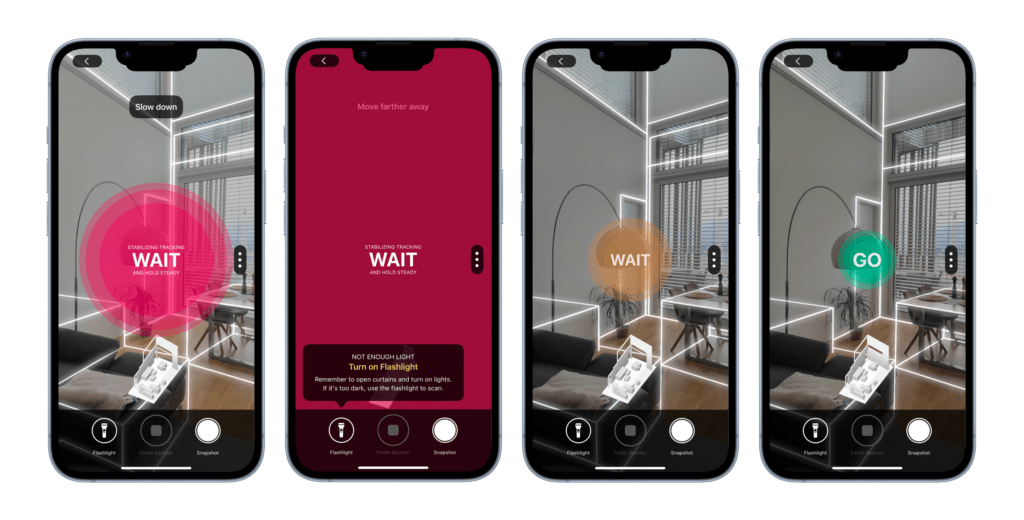
Often, simply standing still or moving back to a previously scanned area will allow tracking to recover. Follow the instructions from the Tracking Assistant on your screen and you can easily get back on track.
If you ignore Tracking Assistant prompts and continue scanning with unstable tracking, you risk losing tracking completely. If that happens, the app will indicate where the loss occurred and guide you on how to recover it.
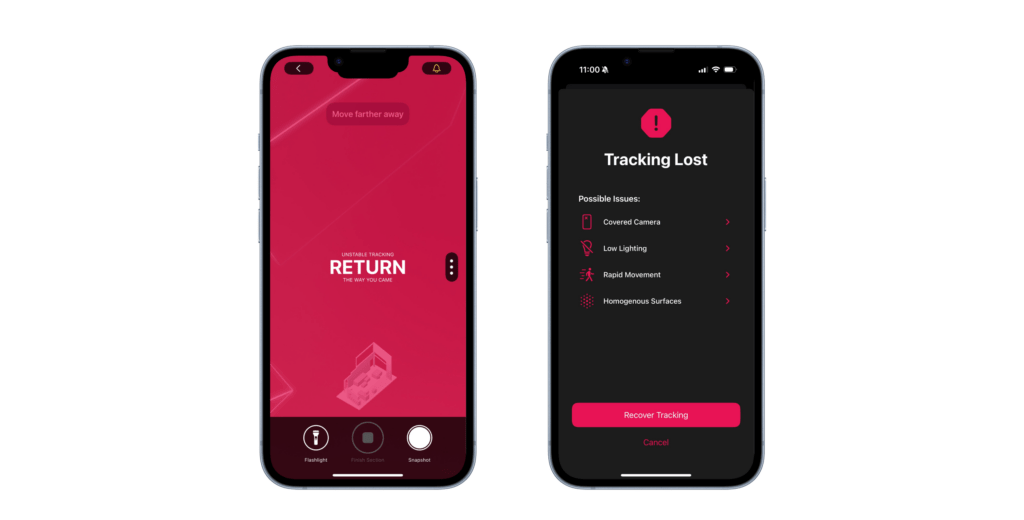
You can also deactivate the Tracking Assistant to stop receiving alerts about unstable tracking, but keep in mind that its guidance is crucial for achieving more accurate scan results.
How do I activate and deactivate Tracking Assistant?
Tracking Assistant is not enabled by default. After your second scan, the app will show a popup prompting you to enable it — and we recommend doing so, as it helps you achieve more accurate and reliable results.
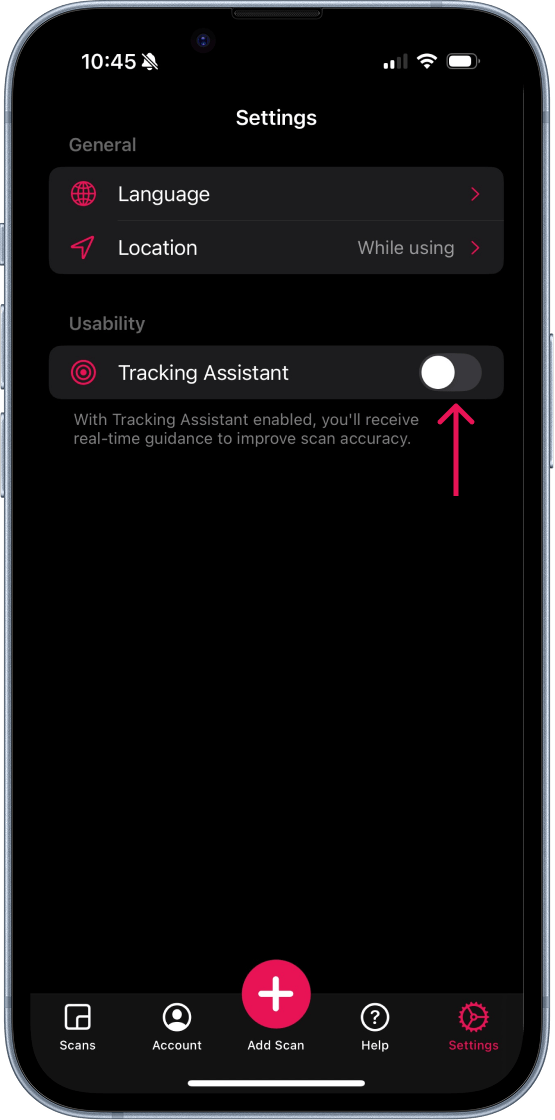
To activate Tracking Assistant, navigate to the Settings menu within the app and toggle the feature on.
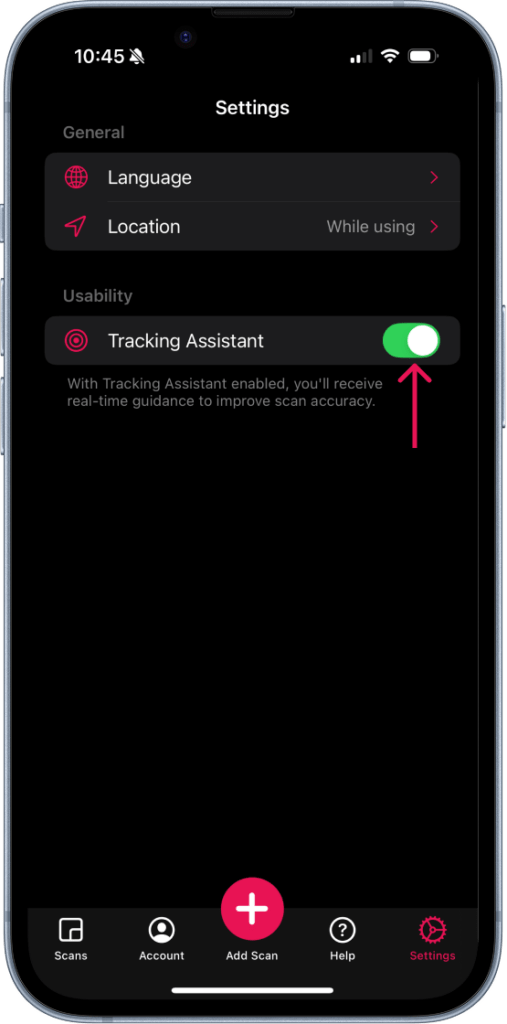
To deactivate it, return to Settings and toggle the feature off.
This flexibility allows you to tailor your scanning experience based on your environment and personal preferences, so you always have the best possible conditions for capturing your space.


