
The Metaroom Workspace offers four measurement tools for obtaining dimensions from your scanned 3D model:
- Area Measurement Tool: draw a custom area by snapping to element boundaries to get its total area.
- Measuring Tape: measure point-to-point distances manually.
- Outside Dimensions of model elements: display the perimeter measurements of a selected room element (e.g., wall, window).
- Area of model elements: select a wall or floor element to see its total area. For elements with openings (doors or windows), the tool also shows the opening area and net area separately.
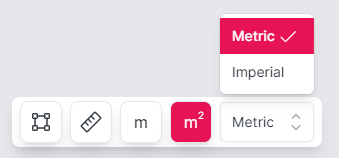
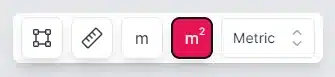
All four tools support both metric and imperial units, switchable from the measurement toolbox.
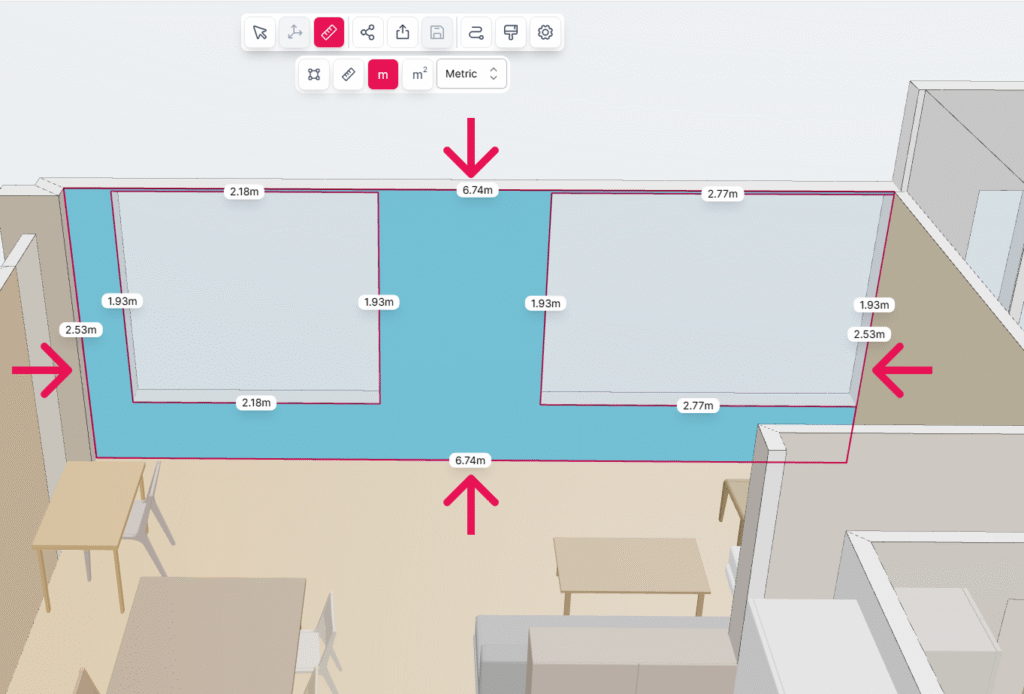
Please note: when you click on a room element, a red outline highlights its precise boundaries — all measurements are based on this outline. If the outline does not match what you want to measure, use the Area Measurement Tool or Measuring Tape instead.
How do I measure a specific part of the room?
Use the Area Measurement tool to manually define and measure any area. Follow these steps:
- Open your scanned space in the Metaroom Workspace.
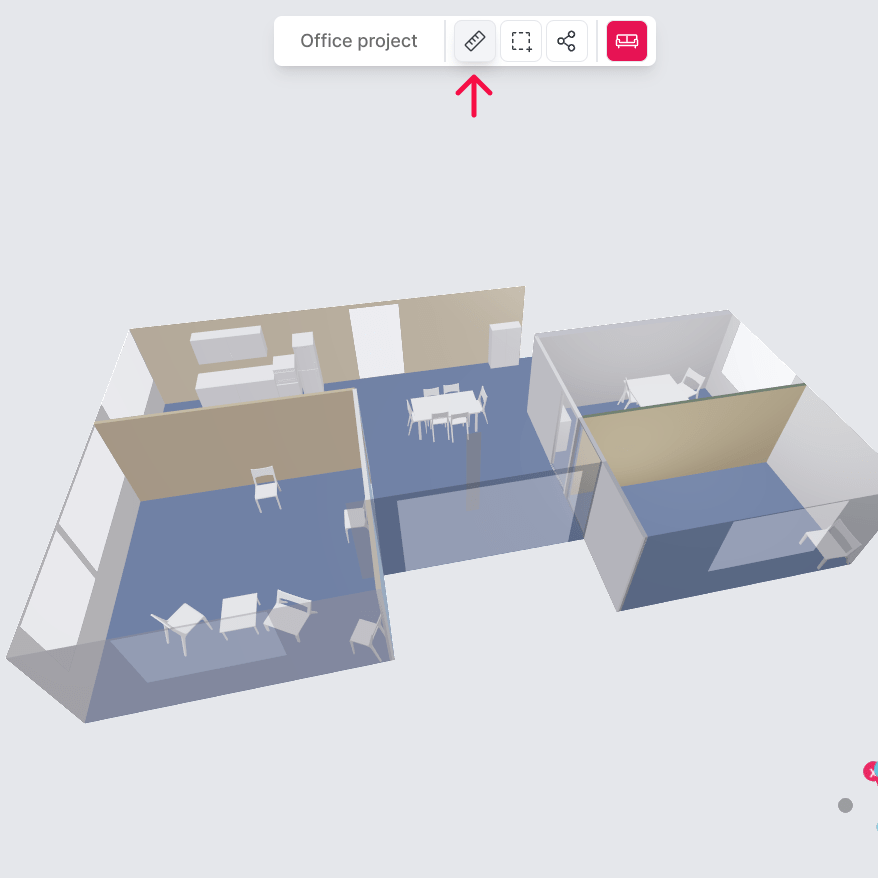
2. Click the measurement icon in the top toolbar.
3. Select Area Measurement tool from the measurement toolbox.
4. Click to place points around the area you want to measure, then click the first point again to close the loop.
Pro Tip: hold and press Ctrl while clicking to freely position points without snapping to element boundaries.
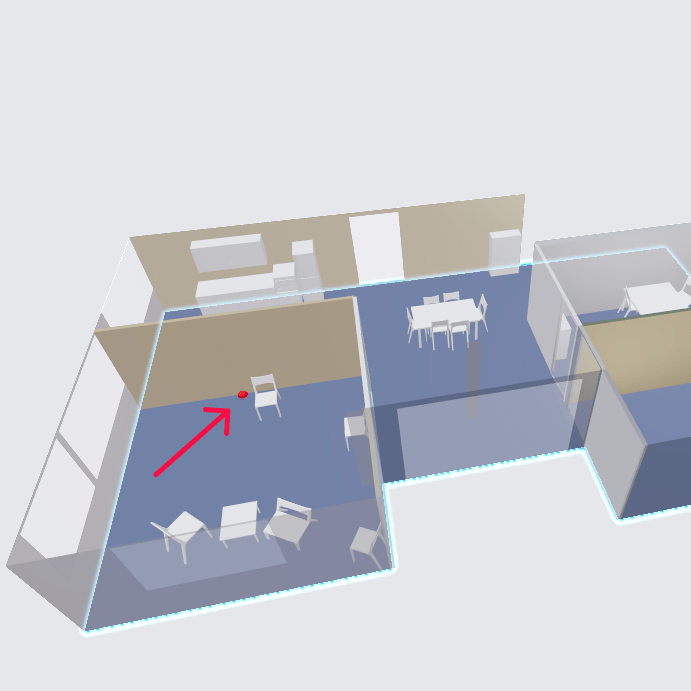
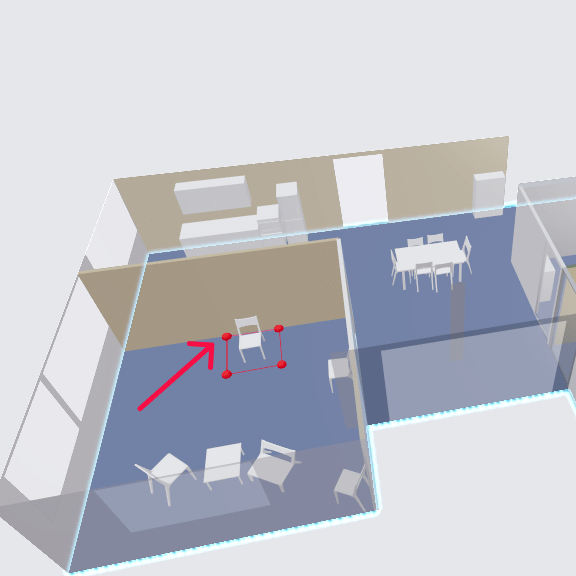
5. The total area of the selected area is displayed.
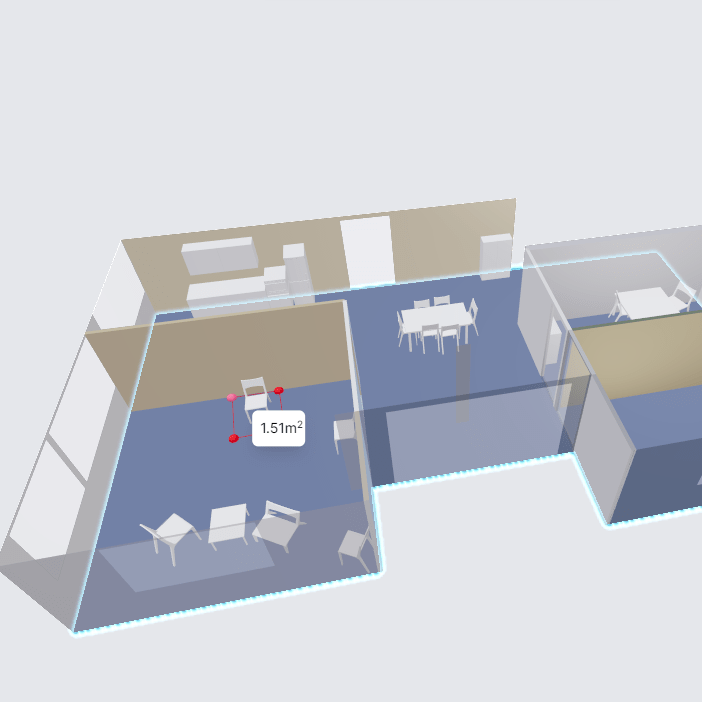
6. If needed, switch between metric and imperial units using the dropdown in the measurement toolbox.
How do I measure a length or distance in the room?
Use the Measuring Tape to measure point-to-point distances. Follow these steps:
- Open your scanned space in the Metaroom Workspace.
- Click the measurement icon in the top toolbar.
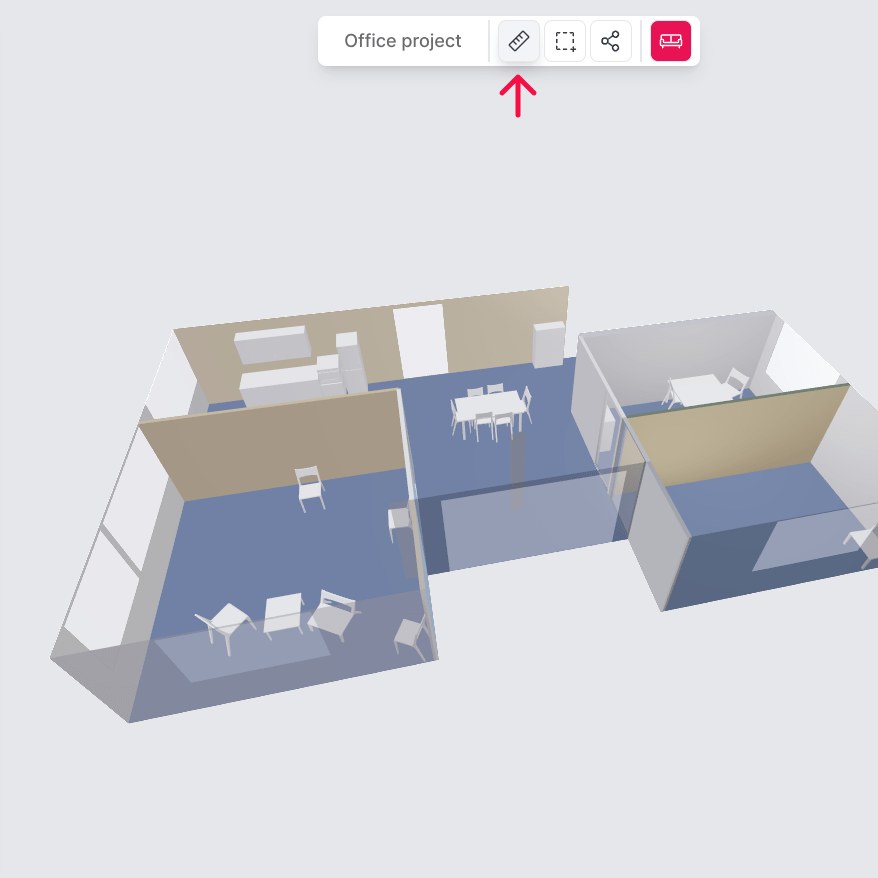
3. Select Measuring Tape from the measurement toolbox.
4. Click to set the start point, then click again at the end point.
Pro Tip: hold and press Ctrl while clicking to freely position points without snapping to element boundaries.
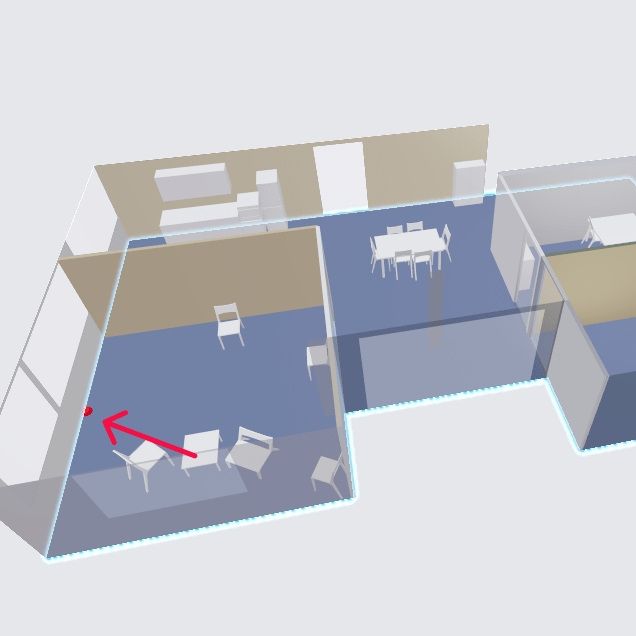
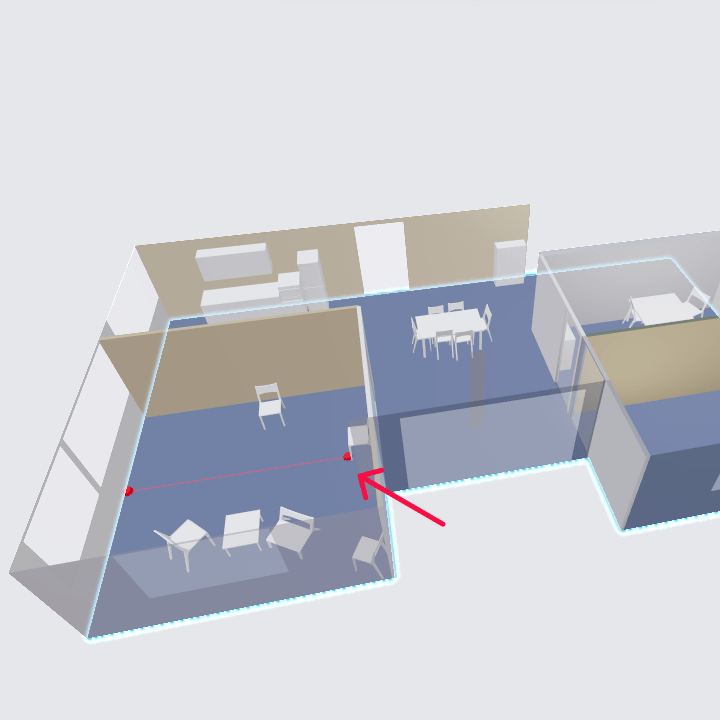
5. The distance between the two points is displayed.
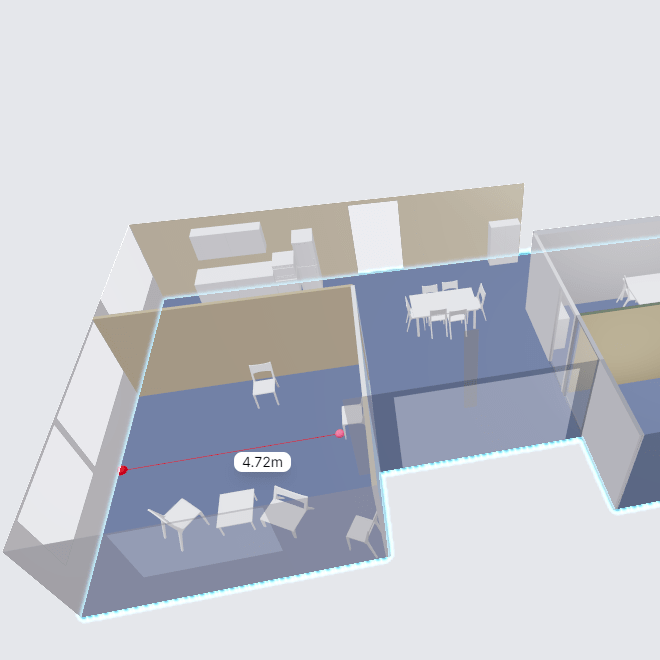
6. If needed, switch between units using the dropdown in the measurement toolbox.
How do I measure the perimeter of a room element?
Use the Outside Dimensions tool to display the perimeter measurements of a selected element. Follow these steps:
- Open your scanned space in the Metaroom Workspace.
- Click the measurement icon in the top toolbar.
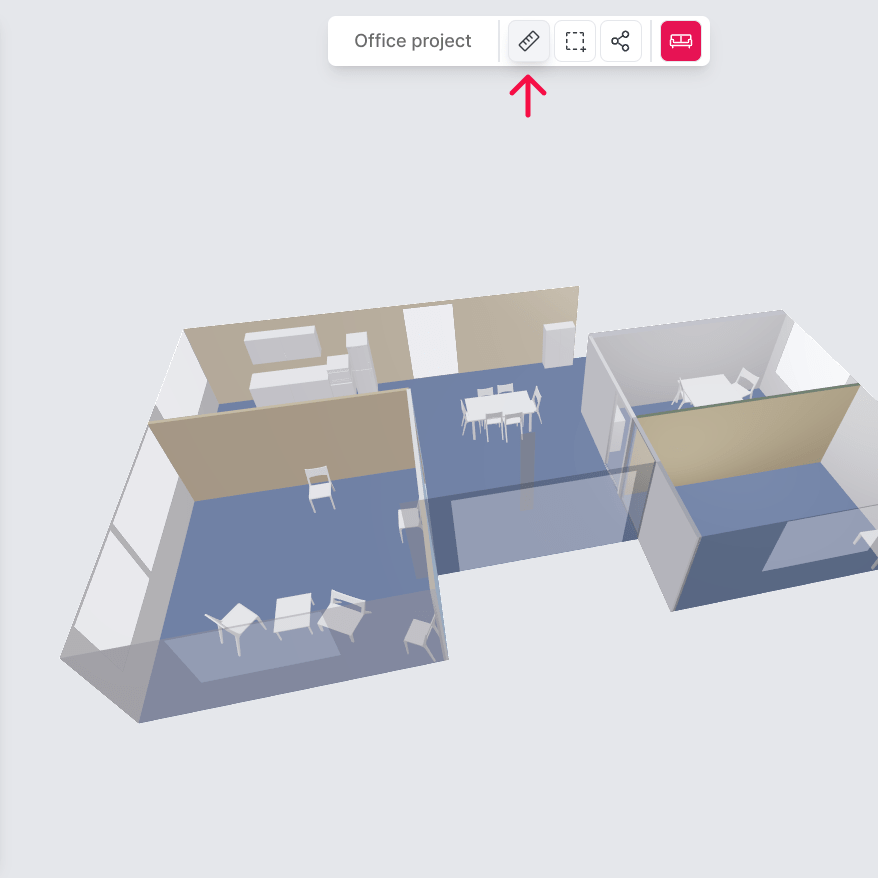
3. Select Outside Dimensions from the measurement toolbox.
4. Click on the element you want to measure (e.g., a wall or window).
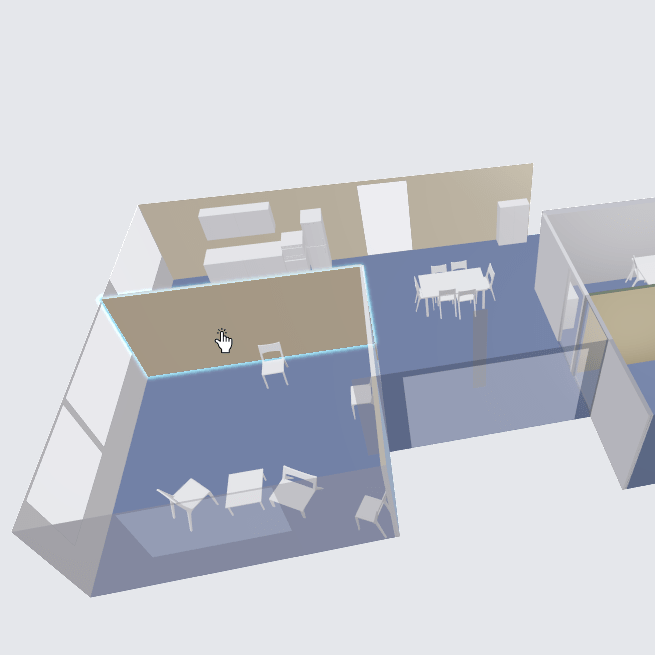
5. The perimeter length is displayed on the selected element.
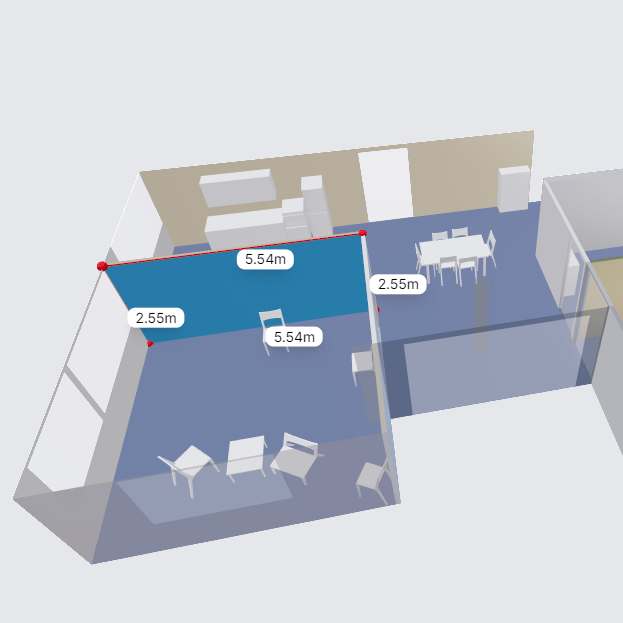
6. If needed, switch between units using the dropdown in the measurement toolbox.
How do I measure the total area of a room element?
Use the Area tool to measure the total area of walls, floors, and other surfaces. Follow these steps:
- Open your scanned space in the Metaroom Workspace.
- Click the measurement icon in the top toolbar.
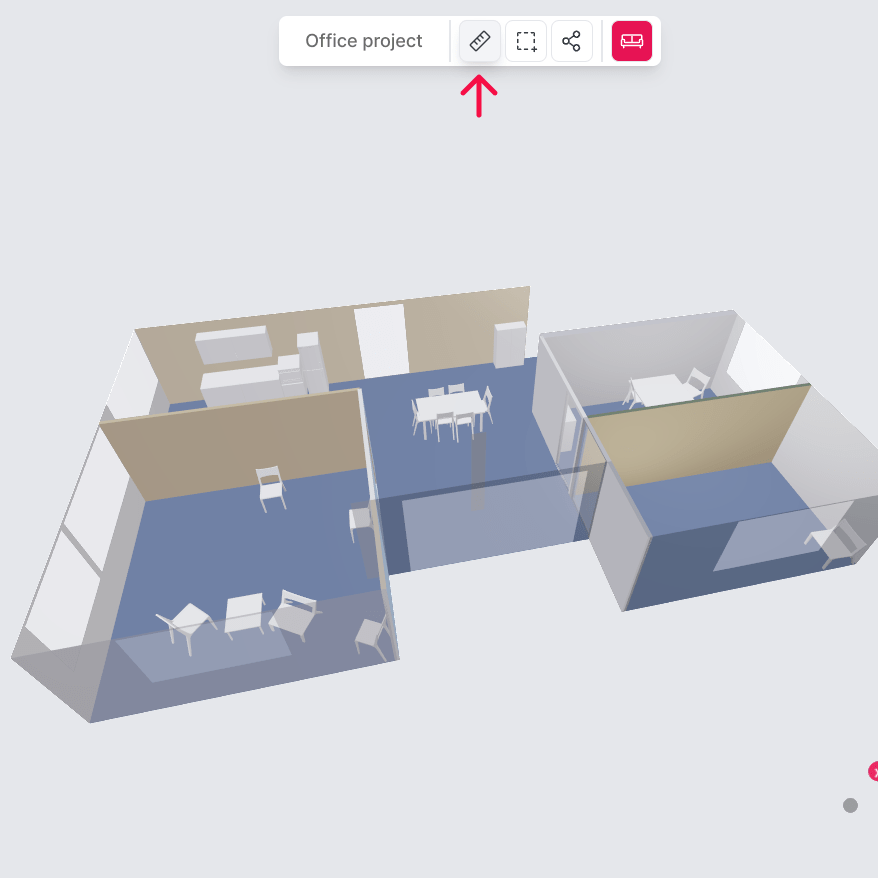
3. Select Area tool from the measurement toolbox.
4. Click on the element you want to measure (e.g., a wall or floor).
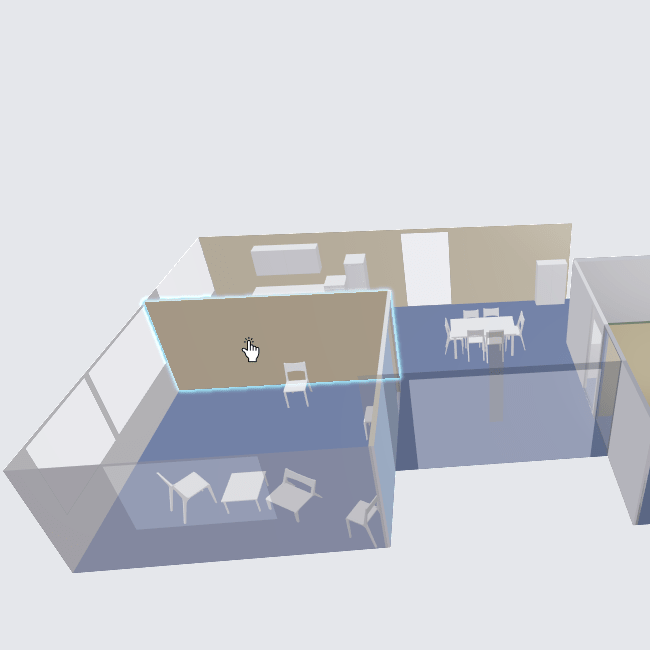
5. The total area is displayed on the selected element. If the element has openings (e.g., a door or window), the measurement shows:
- Total area of the selected element
- Opening area
- Net area (total area minus opening area)
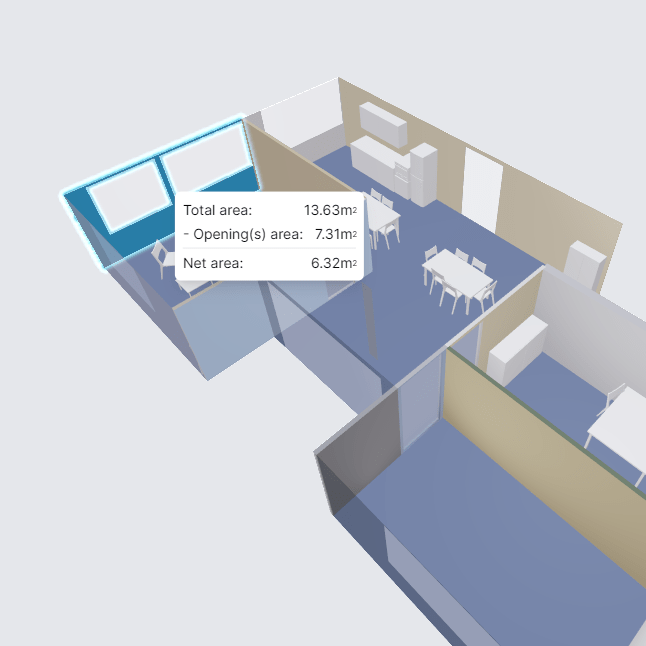
- If needed, switch between units using the dropdown in the measurement toolbox.


