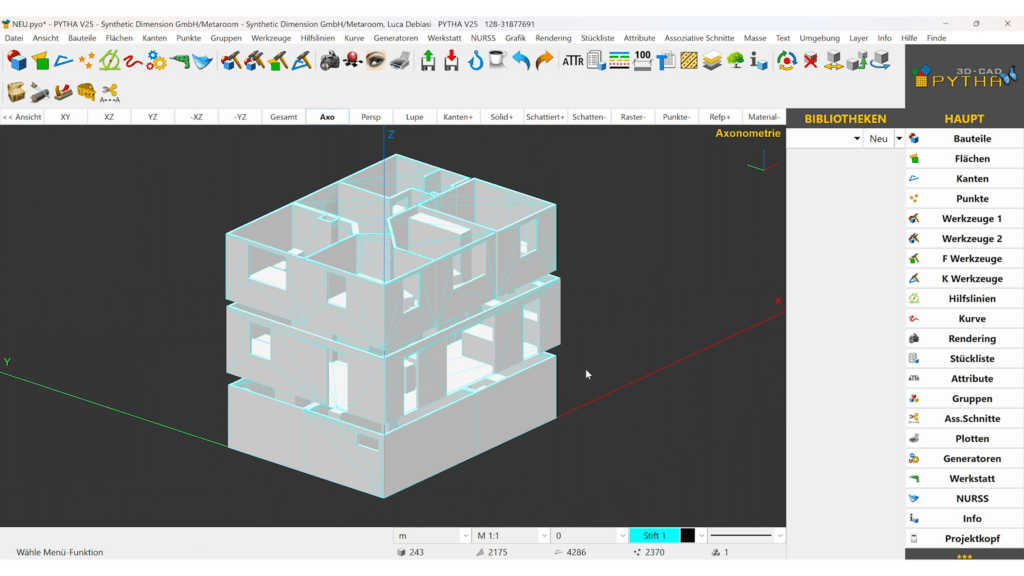
The integration between Pytha 3D CAD and the Metaroom streamlines the process of digitizing spaces and designing interiors within 3D models.
Follow these steps to export your scanned space from the Metaroom Workspace in PYTHA DXF format:
- In the Metaroom Workspace, go to the Projects tab, find your scanned space, and click the Export button.
- In the export window, select PYTHA DXF as the export format.
- Configure the export settings:
- Select metric or imperial measurement units.
- Choose the level of detail: Complete Model, Room Geometry and Custom Objects, or Room Geometry Only (excludes recognized furniture).
- Click Export. The file will be prepared in the background.
- Once the export is ready, download it in one of two ways:
- See the notification that appears in the top-right corner and click Download, or
- In the Projects tab, click the project name to expand it, find the export under the Exports row, and click Download.
How do I import a Metaroom scanned space into Pytha 3D CAD?
Follow this step-by-step guide to import your scanned space from Metaroom Workspace to Pytha 3D CAD software:
- Launch Pytha 3D CAD on your PC.
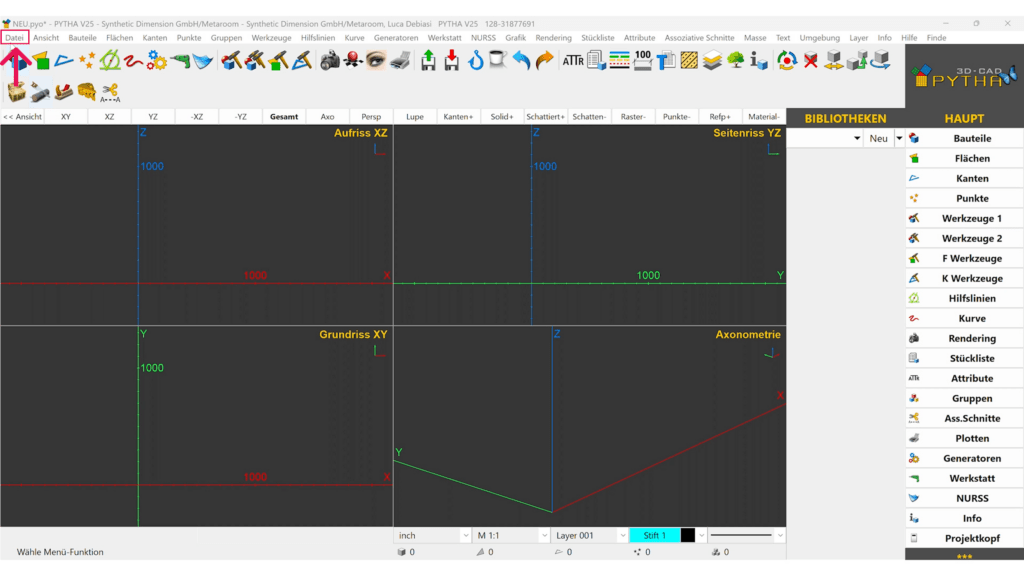
- In the top menu, click “File“.
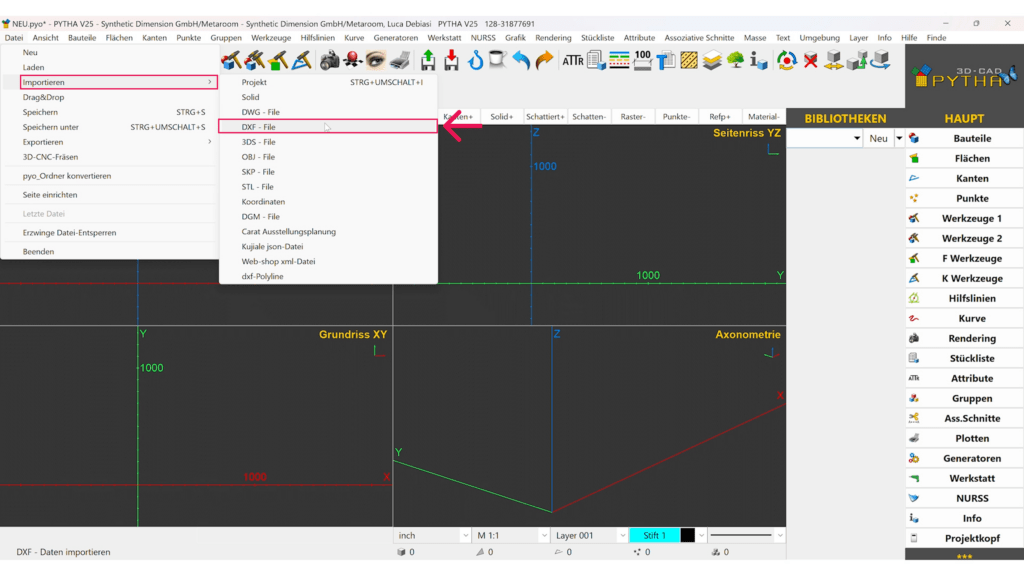
- Select “Import“, then choose “DXF-File“.
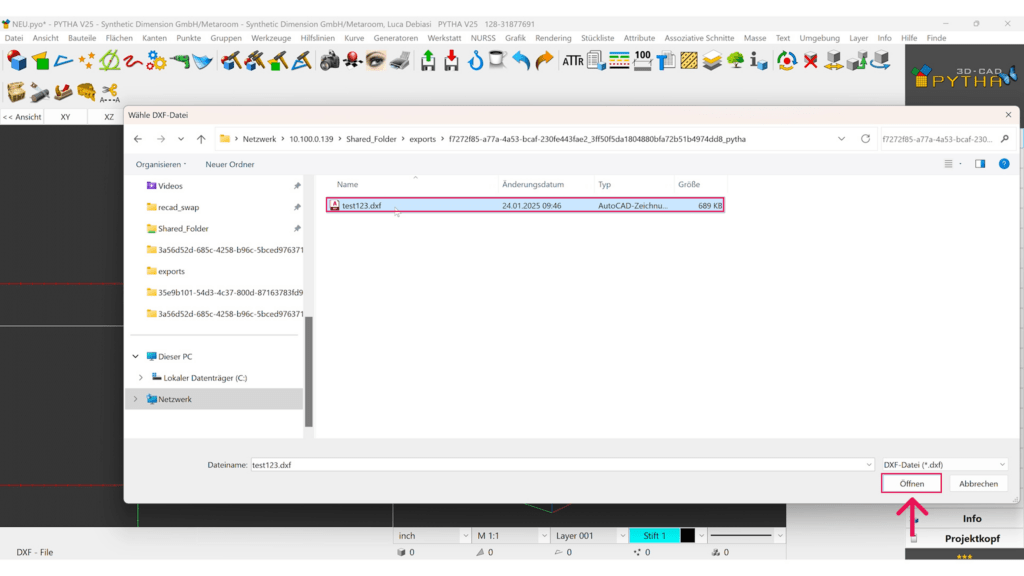
- Locate the exported PYTHA DXF file from Metaroom on your PC and click “Open“.
- Your scanned space will now be loaded in Pytha 3D CAD, ready for interior design modifications.